Halloween Special: 55% OFF

Get Your Code
trade2sync

Product updates

What's new in trade2sync

Everything we've shipped, newest first. trade2sync runs in the cloud, so every update below is already live on your account, with nothing to download and nothing to install.

Version 1.5.0

TradingView webhooks, saved configurations and a Signal History that finally makes sense

This release opens the copier up beyond Telegram — any alert that can reach a webhook now executes on your broker — and rebuilds the two screens you spend the most time in: Workspaces and Signal History.

New

7
New

1. TradingView → your broker, via webhook

Send alerts from TradingView straight to your broker account. Any app or indicator that can post a pair, direction, stop loss and take profit works too — trade2sync doesn't care where the instruction came from.

Crucially, every risk and trade-management setting applies to webhook trades exactly as it does to Telegram signals. Your risk mode, lot sizing, breakeven rules, trailing stops, partial closes, session filters and news filters all run on them with no extra configuration.

Alerts from TradingView — or any tool that can post a webhook — execute on your broker account.
  • Executes on MT4, MT5, cTrader, DXtrade and TradeLocker
  • Works alongside your Telegram channels in the same workspace
  • No VPS, no terminal left running — it runs in the cloud

One limitation

A webhook alert opens a trade — it can't update one. Follow-up commands such as close half, move to breakeven or change the stop loss and take profit are read from Telegram signals only. Automated management still runs on webhook trades: breakeven rules, trailing stops and partial closes at a target all work exactly as they do everywhere else.


Read the full webhook setup guide →

New

2. Save, reuse and move your configurations

Tuning a workspace takes time, and until now that work was locked to a single workspace. You asked for a way to keep it — here it is. Save any configuration — risk & lot, TP/SL, symbols, sessions and signal settings — and apply it anywhere. Copy it to another workspace, export it as a file to back up or share with a teammate, or import one you saved earlier. All saved configurations live in one place. Broker credentials and account numbers are never included in a saved or exported configuration. Only trading settings travel with it.

Save once, then copy, export or import it into any workspace.
New

3. Swap Broker

Point an existing workspace at a different broker account without rebuilding its settings or reconnecting its Telegram channels. Useful when you move from demo to live, switch prop-firm accounts, or change broker entirely. The workspace keeps its channels, its risk configuration and its history. Only the account underneath it changes.

Swap the broker account under a workspace without touching its channels.
New

4. Signal History — one signal, one row

Every take-profit level in a signal opens a separate trade on your broker, so a three-target signal used to produce three separate rows. Working out what actually happened to one call meant piecing it together yourself. History now groups by signal. One row shows the pair, direction, command and how many targets have hit. Open it and you get each TP with its lot, fill price, broker ID and comment, plus a step-by-step timeline of what the copier did — order sent, filled, stop moved to breakeven, target hit. Filter by channel or time period to review how a specific provider has actually performed on your account.

One row per signal — pair, direction, command and how many targets have hit.
New

5. Signal analytics at a glance

Signal History now opens with a summary: signals received, fully executed, rejected by your broker, and filtered by your own rules. The split is the point. A broker rejection points at something outside your control — margin, spread, or market hours. A rule rejection means your configuration did its job, or blocked something you meant to take. Seeing the two separately tells you whether to call your broker or open your settings.

Four numbers that tell you where to look when something didn't execute.
New

6. Signals with custom emoji are now read

Some providers style their signals with Telegram's custom emoji — the symbol, the direction or a status tag rendered as a coloured badge instead of plain text. The text sits inside the emoji rather than in the message, so those signals were invisible to standard parsing and were skipped without warning. trade2sync now reads the text behind custom emoji, so a badged XAUUSD or SELL parses and executes like any other signal. It applies automatically across all your channels, with nothing to set up.

In both messages the symbol or direction is a custom emoji, not text — trade2sync now reads them.
New

7. Sort your workspaces

Order workspaces by newest first, oldest first, or alphabetically — useful once you're running more than a handful and the one you need isn't the one at the top.

Improved

2
Improved

1. Replies to image signals now update your trades

When a provider posts a signal as an image, the copier opens the trades — but a follow-up text reply like "close half" or "move to BE" had nowhere to go, because it wasn't linked back to the trades that image had opened. Now it connects. Replies are matched to the trades the image signal opened, and close, partial close, breakeven, stop loss and take profit changes all work exactly as they do on text signals.

Improved

2. Pending order expiry from 1 minute

The minimum for removing an unactivated pending order drops from 10 minutes to 1. That gives you tighter control on fast-moving pairs, where a limit or stop order that never triggered can be cleaned up in a minute instead of sitting on your account absorbing margin. Existing values of 10 minutes or more stay valid — nothing changes unless you lower it yourself.

Fixed

1
Fixed

1. Move SL After X no longer accepts 0

Move SL After X (Pips / RR / Money / TP Hit) previously accepted 0 as a value. Set that way the feature had no trigger point and silently did nothing — the toggle looked on, but your stop never moved. The field now requires a value above 0, so an enabled feature actually runs.

Worth checking

If you had Move SL After X enabled with a value of 0, that feature was never firing. Open the workspace, set a value above 0, and save. Every other existing setup is unaffected by this release.

Questions

Common questions about updates

How updates reach your account, and what changes when a new release ships.

Still have questions?

Can't find the answer you're looking for? Our friendly support team is here to help you anytime.

Copy your first signal in under 60 seconds

Connect a Telegram channel or a TradingView webhook, pick your risk, and trade2sync executes on your MT4, MT5, cTrader, DXtrade or TradeLocker account. No VPS. No terminal left running.

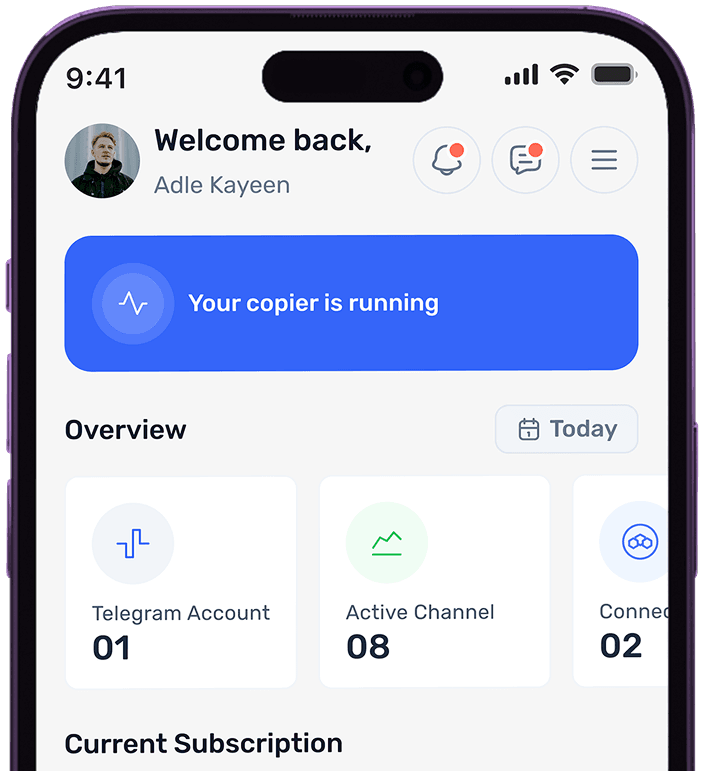
trade2sync mobile dashboard showing active copier status